
It was a normal day. A user just opened a free PDF tool he found online. Nothing looked wrong. Two days later, his files had strange names. A note on the screen asked for money.
Stories like this are common. Well, yes! That is why Windows security in 2026 needs real attention.
Sometimes the damage is already there. The PC feels slow. Pop-ups keep showing. The browser home page changes on its own. In that case, you must remove malware first. Then you can fix the settings. The good news is that Windows can do much of this work alone. You do not need a paid tool in most cases. We will share the exact steps later in this guide.
Windows 11 comes with a long list of safety features. Some are on by default. Some are off. Some are on but set too loose.
This guide picks the built-in protections that matter most. For each one, you will learn what it does and why it helps. You will also get simple steps to turn it on. No jargon. No fear. Just clear help.
Read: How Interactive AV Tech is Revolutionizing Modern Training and Onboarding
Why Default Windows 11 Settings Are Not Enough
Windows 11 starts with a fair level of safety. But default does not mean best. Here is why a quick check still matters:
- Microsoft must keep Windows easy for everyone. So some strong features stay off or run in a mild mode.
- Older PCs may miss a few options because of hardware limits.
- Attackers know these gaps. They look for PCs that run with weak settings.
- Fake emails, bad downloads, and rogue ads are still the top doors. Default settings do not block all of them.
- A few minutes in Settings can close many of these doors.
- The setup takes less than an hour. It protects you for years.
Top Built-In Protection Settings to Enable Right Now
Microsoft Defender Antivirus: Keep It Fully Awake
Start with the built-in protections that cover the basics. Microsoft Defender is the core of them. It scans files, apps, and downloads as you use the PC. For most people, it is good enough. Independent labs have rated it well for years.
But a few of its switches need a check. Here is how to find them:
- Press the Start button and type Windows Security. Open Virus and threat protection.

2. Click Manage settings under Virus and threat protection settings.
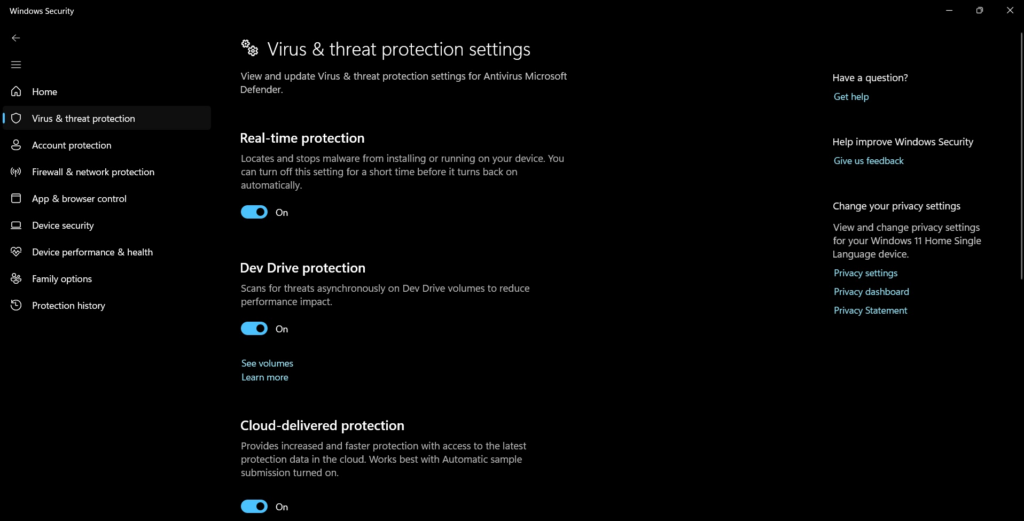
Now turn on these four options:
- Real-time protection. It watches files as they open or download.
- Cloud-delivered protection. It checks unknown files against Microsoft’s online data.
- Automatic sample submission. It sends odd files for review.
- Tamper Protection. It stops other software from changing Defender settings.
Tamper Protection is the one people forget. Malware often tries to switch off your antivirus first. This option blocks that trick. Keep all four on.
Smart App Control: A Strict Guard for New PCs
Smart App Control is a newer feature. It blocks apps that Microsoft does not trust. It looks at the app’s signature and its reputation. If an app is unknown or unsafe, it will not run.
This is strong help against fake installers and cracked software. Those are common ways to catch a virus. Many users never see the danger until it is too late.
There is a catch. Smart App Control works only on Windows 11. On many PCs, it is available after a fresh install or a reset. Once you turn it off, you may not be able to turn it back on without a reset. Microsoft has been changing this rule, so check your own version.
To look at it, go to Windows Security. Open App and browser control. Then click Smart App Control settings. If it says On, you are set.

If you use lots of small tools from unknown makers, it may block some. In that case, think before you turn it off.
SmartScreen: Your Filter for Bad Links and Files
SmartScreen checks websites and downloads before they reach you. If a site looks like a scam, it shows a warning. If a file is rare and unsigned, it asks you to stop and think. It works in Edge and in Windows itself.
Many attacks start with one wrong click. A fake bank page. A fake update. A fake invoice. SmartScreen catches a good share of these. It costs nothing and slows nothing.
Open Windows Security. Click App and browser control. Then choose Reputation-based protection settings. Turn on these four:

- Check apps and files
- SmartScreen for Microsoft Edge
- Potentially unwanted app blocking
- SmartScreen for Microsoft Store apps
The unwanted app option is useful. It stops adware and junk toolbars. These often sneak in with free software. Do not skip this one.
Windows Firewall: The Gate You Should Never Open
The firewall controls what enters and leaves your PC through the network. It blocks unwanted traffic. It also stops apps from calling home without your say.
Some people turn it off to fix a game or a printer. That is risky. Fix the app rule instead. Leave the gate closed.
To check it, open Windows Security. Click Firewall and network protection. You will see three profiles: Domain, Private, and Public. Each one should say the firewall is on. Public networks, such as a cafe or airport, need it most.

Image name: windows-security-in 2026-06.jpg
Image alt: windows firewall and network protection
If a program needs access, use Allow an app through firewall. Add only that app. Do not open the whole gate for one tool.
Ransomware Protection: Turn On Controlled Folder Access
This feature is off by default. That surprises many people. It protects your key folders, like Documents, Pictures, and Desktop. Only trusted apps can change files there. If ransomware tries to lock your files, Windows stops it.
To turn it on:
- Open Windows Security. Click Virus and threat protection.

- Scroll down to Ransomware protection and click Manage ransomware protection. Switch on Controlled folder access.
Memory Integrity: Guard the Core of Windows
Memory integrity is part of Core isolation. It runs key parts of Windows inside a safe, sealed space. Malware then has a hard time hiding in low-level system code. It also blocks unsafe drivers from loading.
This is deep protection. You do not see it work. But it stops a class of attacks that other tools may miss.
To check it, open Windows Security. Click Device security. Then click Core isolation details. Turn on Memory integrity. Restart the PC when asked.

Do not use 1234 or your birth year. Pick a PIN that is hard to guess. It should feel boring to you and random to others.
Windows Update: The Quiet Hero
Many attacks use old bugs. The fix is often ready, but the user never installs it. Updates close those doors. This is the cheapest safety step there is.
Open Settings and click Windows Update. Turn on Get the latest updates as soon as they are available. Set active hours so restarts do not bother you. Check for updates once a week, at least.

Also switch on Find my device in Settings under Privacy and security. If your laptop goes missing, you can see its last known spot. You can also lock it from your Microsoft account.
Pro Quick Tips to Remove Malware With Free Windows Tools
Now for the case we started with. Say your PC acts strange. Here is a simple plan to remove malware without buying anything.
- Go offline. Unplug the network cable or turn off Wi Fi. This stops the threat from spreading or sending data out.
- Run a full scan. Open Windows Security, click Virus and threat protection, then Scan options. Choose Full scan and start it.
- Try a Microsoft Defender Offline scan. Pick it in the same list. Your PC restarts and scans before Windows loads. It can catch hidden threats.
- Use Safe mode if needed. If the PC is too slow to scan, restart in Safe mode with networking and try again.
- Check startup apps. Open Task Manager, click Startup apps, and disable anything you do not know.
- Reset your browsers. Remove odd extensions and restore the home page.
- Change your passwords. Do this from a different, clean device.
Conclusion
Good safety does not need a big budget. It needs a few right switches. Microsoft Defender, SmartScreen, the firewall, and Windows Update are the base. Controlled folder access, Memory integrity, and encryption add strong layers. Windows Hello makes sign-in safer and easier.
FAQs
Do I need a paid antivirus on Windows 11 in 2026?
For most home users, no. Microsoft Defender gives solid protection when set up well. It scans in real time, uses cloud checks, and gets daily updates. A paid tool may add extras like a VPN or a password vault. Those are nice, but not a must. If you handle sensitive work data or manage many devices, a paid suite may help. Otherwise, save your money and use the free tools.
Will these features slow down my PC?
Very little. Modern PCs handle Defender, SmartScreen, and the firewall with ease. Memory integrity can slow some older machines a bit, mostly in games. Controlled folder access may show alerts at the start. If you notice a slowdown, turn features off one at a time to find the cause. Do not switch off the whole set. Most people will not feel any change in daily use.
How can I tell if my PC has malware?
Watch for signs. The PC runs slowly for no reason. Pop-ups show up when no browser is open. Files go missing or change names. The fan runs loudly while the PC is idle. Your antivirus may turn off on its own. If you see two or more of these, run a full scan first. If it finds a threat, follow the steps above to remove malware. Then change your passwords from a clean device.
Take twenty minutes today. Open Windows Security and walk through each page. Turn on what is off. Fix any warning you see. That small effort is the best gain in Windows securitys in 2026. These built-in protections are already on your PC. Use them well, and most threats will never get through.